
OnlyFans charges can land without warning, and one unexpected entry is often enough to throw off a carefully planned month. It requires a short, ordered routine: identify the charge, adjust the remaining weeks, and close the gap that let the surprise through. This guide walks through that routine, using the same comparison method that BestOnlyFans applies when it reviews paid pages. BestOnlyFans refreshes its rankings every month.
The money has already moved, so the only useful questions are where it went and what changes over the next thirty days.
First: Identify What Actually Happened
Open the transaction list for the card you use and find the exact date and amount of the entry that caught your attention. Write both down before opening any app, because memory tends to round amounts and that distortion makes every later step harder.
A renewal on a page you forgot about looks identical to a fresh charge until you check the date. Statement descriptors are often shortened, so compare the amount against your own records instead of guessing from the name alone.
- Open the card statement and note the date, the amount, and the descriptor exactly as shown.
- Copy the descriptor into a notes file so you compare against a fixed string, not a memory.
- Open the platform and check your subscription list for a renewal on or near that date.
- Check the message history for a pay-per-view unlock that matches the amount.
- Classify the entry as a subscription renewal, a PPV unlock, a tip, or a temporary authorisation hold.
Once every line has a label, the total stops looking like an emergency and starts looking like a list you can act on.
Tip: keep one notes file with three columns — date, amount, and what it bought. Rebuilding that file after a surprise takes ten minutes; keeping it current takes about twenty seconds a week.
Separating Holds From Real Charges
Card verification places a temporary hold of about $0.10 that is refunded within a few days, and it is the most common cause of a confusing mini-charge. If the amount is under a dollar and the date lines up with adding or updating a card, wait a few days before counting it as spending.
Real entries behave differently. A base subscription on a paid page sits between $4.99 and $49.99, though most pages cluster in the $4.99 to $15 range. A pay-per-view unlock can reach $50, paid chat commonly runs $3 to $5 per message, and tips can go higher.
| Entry Type | Typical Amount | Next Step |
|---|---|---|
| Card verification hold | About $0.10 | Wait a few days for the refund, then recheck the statement |
| Subscription renewal | $4.99 to $49.99 | Confirm the page and decide whether to keep it active |
| Pay-per-view unlock | Up to $50 | Match it to the message thread before unlocking anything else |
| Paid chat message | $3 to $5 per message | Review how many messages you sent that day |
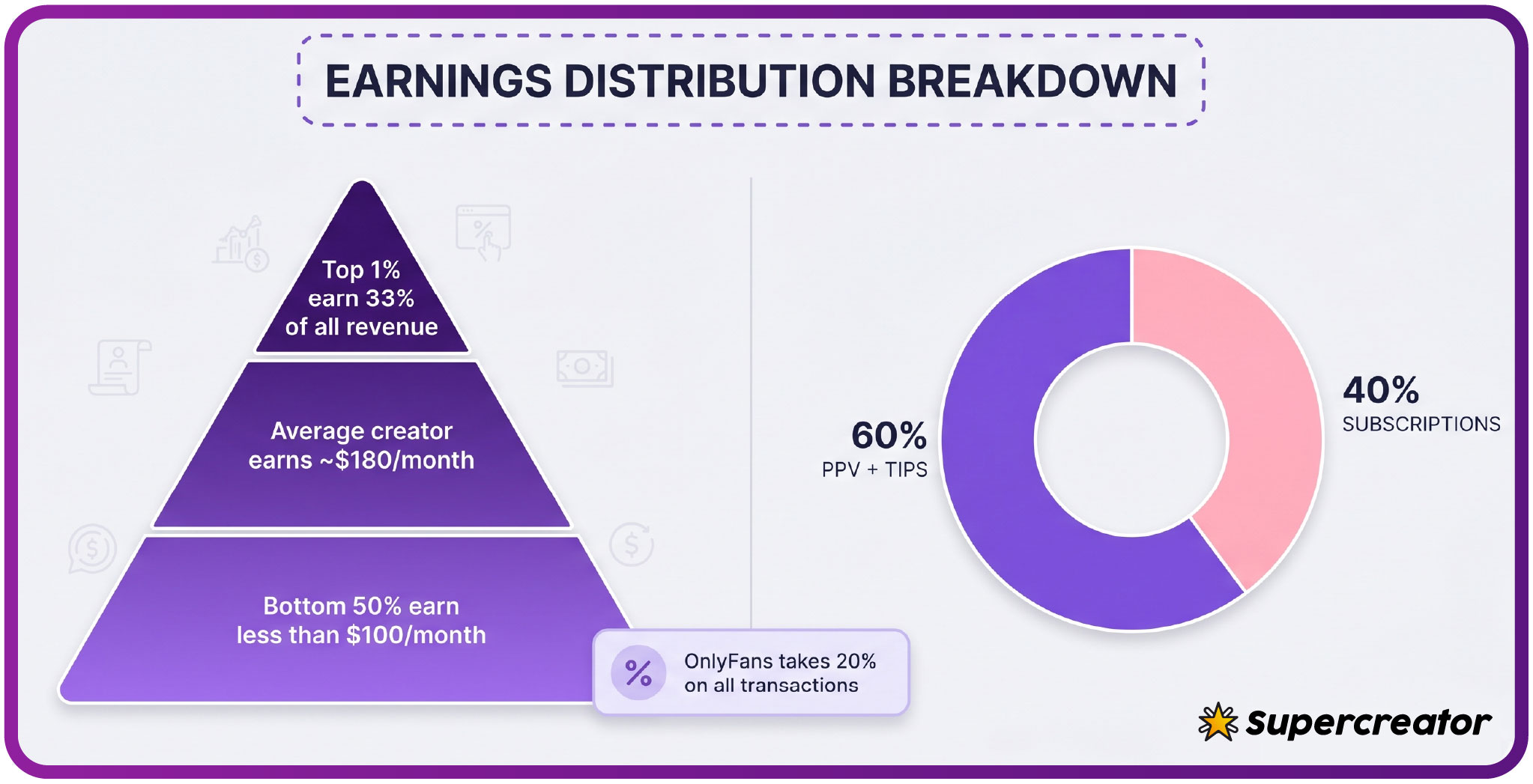
One detail matters more than the label: the platform keeps 20% of every payment and the creator receives 80%. That split does not change what you owe, but it explains why a creator may raise a price rather than lower it when costs change.
Adjusting the Current Month
Take the total you planned to spend on subscriptions this month, subtract what has already gone out, and treat the result as a hard cap rather than a rough guide. Promotional first months can sit below $4.99, but a base price cannot go under that floor, so a recurring line below it deserves a second look.
- Recalculate the remaining cap by subtracting all confirmed charges from your monthly figure.
- Reduce pay-per-view unlocks first, since they are the most flexible line in the budget.
- Freeze new subscriptions until the next billing cycle begins.
- Set a weekly check so the cap is monitored four times, not once at the end.
A two-week freeze on new unlocks usually recovers more than one dramatic cancellation, and it leaves existing access intact. When a creator raises a price, auto-renew stops and your current access runs until the paid period ends.
Deciding Which Subscriptions to Pause
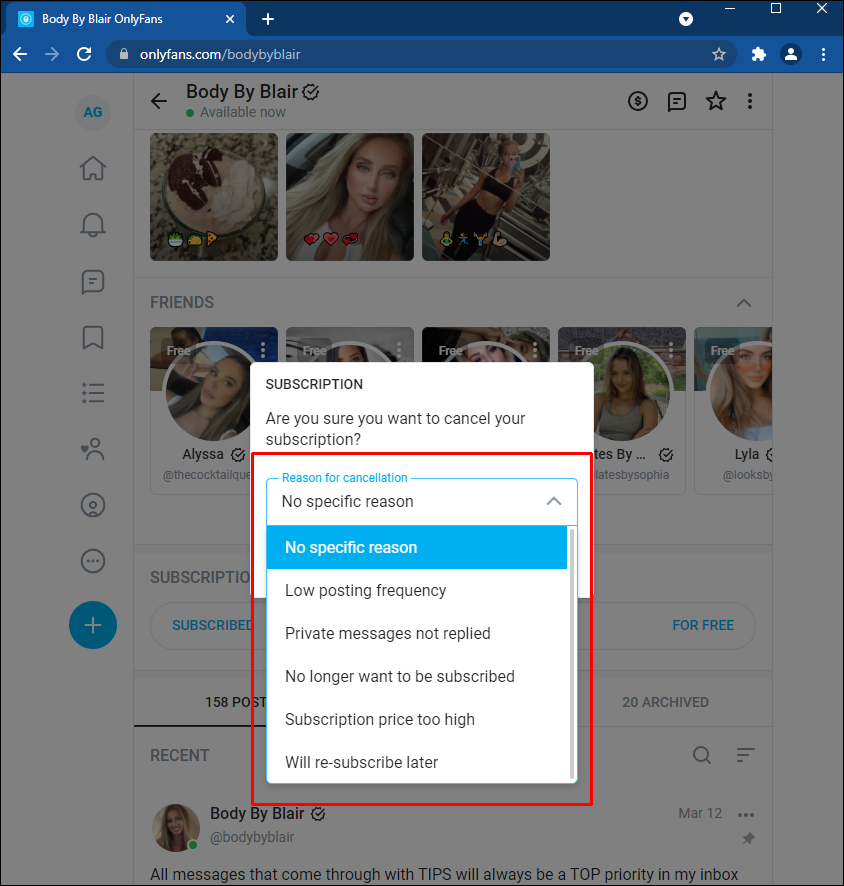
A pause is not a cancellation. Pausing means you stop renewing a page for one cycle while keeping the option open, and it is the right move when you are unsure rather than certain. Panic cancellation removes access you may still use, and re-subscribing later often costs more than the rate you gave up.
Choose pause candidates using observable behaviour rather than mood:
- Pages you have not opened in the last two weeks, regardless of how much you like the creator.
- Pages that changed price recently, since the new rate may not match the value you were getting.
- Pages whose ranking card history looks unstable, which often signals further price movement.
- Pages you subscribed to on impulse during a promotional first month.
Two or three pauses usually free enough room to absorb a surprise entry without touching the pages you actually use.
One more check before you decide: confirm whether the page you are about to pause has a recurring hold or pending unlock attached to it.
Rebuilding a Buffer for Next Month
A buffer is a small margin set aside so that the next unexpected entry does not break the plan, and it works even when the total budget is modest. The size matters less than the habit: a few dollars a week covers a mid-range PPV unlock or a price increase on one page.
Practical ways to build one while keeping the rest of the budget unchanged:
- Set aside a small fixed amount each week rather than a lump sum at month end.
- Use a dedicated card or account so the buffer stays separate from everyday spending.
- Turn on a balance alert at the threshold you set, so you notice before the buffer is spent.
- Review the buffer monthly and adjust the weekly amount rather than abandoning it.
Subscribers who track spending over several months often find that two entries — one renewal and one unlock — account for most of the variance.
Using BestOnlyFans History to Verify Cost Patterns
Because the platform has no built-in discovery feed or directory, ranking sites exist to fill that gap, and the useful ones keep a record of how prices on each listed page have moved. If a page you follow has been trending upward for three months, the renewal you just saw is not an anomaly.
The best onlyfans reviewed directories keep price history alongside each ranking card, which makes it possible to check whether a page is climbing before the next renewal arrives.
| Signal | Meaning | Action |
|---|---|---|
| Base price moved up twice in six months | Page is trending toward the upper range | Decide before renewal whether the new rate still fits |
| Promotional first month offered repeatedly | Standard rate is higher than the entry rate | Plan for the full price from month two |
| Price stable for a year | Predictable monthly cost | Keep it as a budget anchor rather than a pause candidate |
| Frequent ranking position changes | Cost and content may shift soon | Recheck the card before each renewal date |
Subscribers who check a handful of ranking cards every month tend to spot price changes before they hit a statement. Fifteen minutes once a month is enough to catch a trend.
If a charge still looks wrong after all of this — an amount you cannot match to any page, message, or hold — treat it as a phishing question rather than a budgeting one. Unexpected entries are not always subscription renewals, and the recovery routine only works when the entry is genuinely yours.

Preventing a Repeat
Prevention is mostly administration. Subscribers who rarely get surprised are not spending less than everyone else; they simply know when each renewal lands and what each unlock costs before they tap it.
- Log every upcoming renewal with its date and amount in one place you will actually open.
- Review auto-renew status for each subscription and confirm it still matches your intent.
- Confirm the cost of any PPV message before unlocking it, including the current rate.
- Recheck your buffer balance and top it up if it has been used.
Two settings are worth turning on immediately. Payment alerts on the card catch entries within a day rather than at the end of the month, when they are harder to trace.
A cap turns every decision into a simple comparison — does this fit, yes or no — and it removes the ambiguity that makes surprise charges feel larger than they are.
FAQ
How do I know if a charge is a hold or a real payment?
Check the amount first. A card verification hold is about $0.10 and is refunded within a few days, so an entry under a dollar that lines up with adding a card is almost always a hold. Real payments match a subscription range of $4.99 to $49.99, a PPV unlock up to $50, or a paid chat message in the $3 to $5 band.
Should I cancel everything after an unexpected charge?
No. Pause the two or three pages you use least, freeze new unlocks for a couple of weeks, and recalculate the remaining cap. Cancelling everything removes access you may still want, and returning later often means paying a higher rate.
How can ranking sites help me avoid surprises?
They fill the gap left by the platform’s lack of a discovery feed, and the better ones track how prices on listed pages have moved over time. If a card shows a base price that has climbed across several months, you can plan for the higher renewal before it appears on your statement.
Is a buffer fund useful for a small budget?
A few dollars set aside weekly covers a mid-range PPV unlock or a single price increase, which are the two events most likely to disrupt a tight plan. Start with an amount you will not miss and adjust it once you see your own spending pattern.